A Notion template isn't a file. What a buyer pays for is a link that copies your page into their own Notion workspace. So selling one is two jobs: publishing a copy people can duplicate, and putting that link behind a checkout.
Build the template as its own page#
Build the template on a page of its own rather than inside the workspace you actually use, so nothing personal goes out with it. Before you publish:
- Clear your own entries out of the databases, or swap them for a few sample rows that show how it works.
- Check that relations and linked views point at databases inside the template, not elsewhere in your workspace.
- Add a Start here page: what each section is for, and the first three things to do.
Publish it with Duplicate as template on#
- Open the template page and select Share, then the Publish tab, then Publish.
- Turn on Duplicate as template.
- Copy the link to the published page.
Anyone who opens that link can copy the template into their own workspace (Notion's publishing guide), so the link is the product. Hand it over after payment, and don't post it anywhere public. Editing the published page changes what the next buyer copies; people who duplicated it earlier keep the version they copied.
Where to sell Notion templates#
On Notion Marketplace#
Notion runs a template marketplace of its own. To sell there directly, you join a waitlist, get approved by Notion and connect Stripe, and Notion warns that review can take a few months. Once you're in, it takes 8% + $0.40 per sale and acts as the merchant of record, handling sales tax and VAT. Prices are in US dollars. Money is held for 14 days to cover refunds and paid out every other Thursday once you have $20, and sellers outside the US pay a further 1% for currency conversion. Buyers can ask for a refund within 14 days, and a refund removes their copies (selling on Marketplace).
Notion also lets a Marketplace listing for a paid template send buyers to a checkout somewhere else, which is the route for sellers in countries it doesn't support for direct sales. If you sell the same template on Marketplace and elsewhere, publish a separate copy at a different link for outside buyers: once a template is approved for direct sale, its original link sends people to Marketplace checkout, and buyers arriving from another platform can't duplicate it.
On a store like Gumroad#
Gumroad takes 10% + $0.50 of each sale made through your profile or a direct link, plus card processing of 2.9% + $0.30, or a flat 30% when its Discover marketplace made the sale (Gumroad fees). Like Notion, it is the merchant of record and handles sales tax and VAT (Gumroad pricing).
On your own page#
A checkout on your own page costs card processing and nothing more, and every buyer's email address is yours. You find every buyer yourself, though, and as the seller of record you deal with tax. Stan Store sells from your own page for a monthly subscription and no cut on sales; our Stan Store explainer has its prices and Stick vs Stan Store compares the two. On Stick it is a Digital Product block, set up below.
Here is what a $20 template leaves you, for a US seller and a US card:
| Where it sells | Fees on $20 | You keep | Sales tax and VAT |
|---|---|---|---|
| Notion Marketplace, direct sale | $2.00 | $18.00 | Notion |
| Gumroad, through your link | $3.38 | $16.62 | Gumroad |
| Your own page, Stripe checkout | $0.88 | $19.12 | You |
Notion's and Gumroad's fees were checked against their own pages on 28 October 2026. The Stripe row uses Stripe's standard US rate for domestic cards, 2.9% + $0.30, and the Stripe fee calculator works out any other price.
Sell it from your Stick page#
- In the editor, add a Digital Product block. It's under Grow & Earn in the block menu.
- Upload a cover (a screenshot of the template's main page works), then write a title and a description that lists what's inside and says the buyer needs a Notion account.
- Under Price, choose Paid and enter the amount. An optional Sale price is charged whenever it's lower, with the original shown crossed out.
- Under Reward after submit, choose Link and paste the published template link. Or choose File and upload a short PDF with the link and your setup steps.
- Connect Stripe once, in Settings → Payments. Prices show and charge in your Stripe account's currency, and a paid product won't publish until that account can take payments.
- Publish, and put the page in your bio.
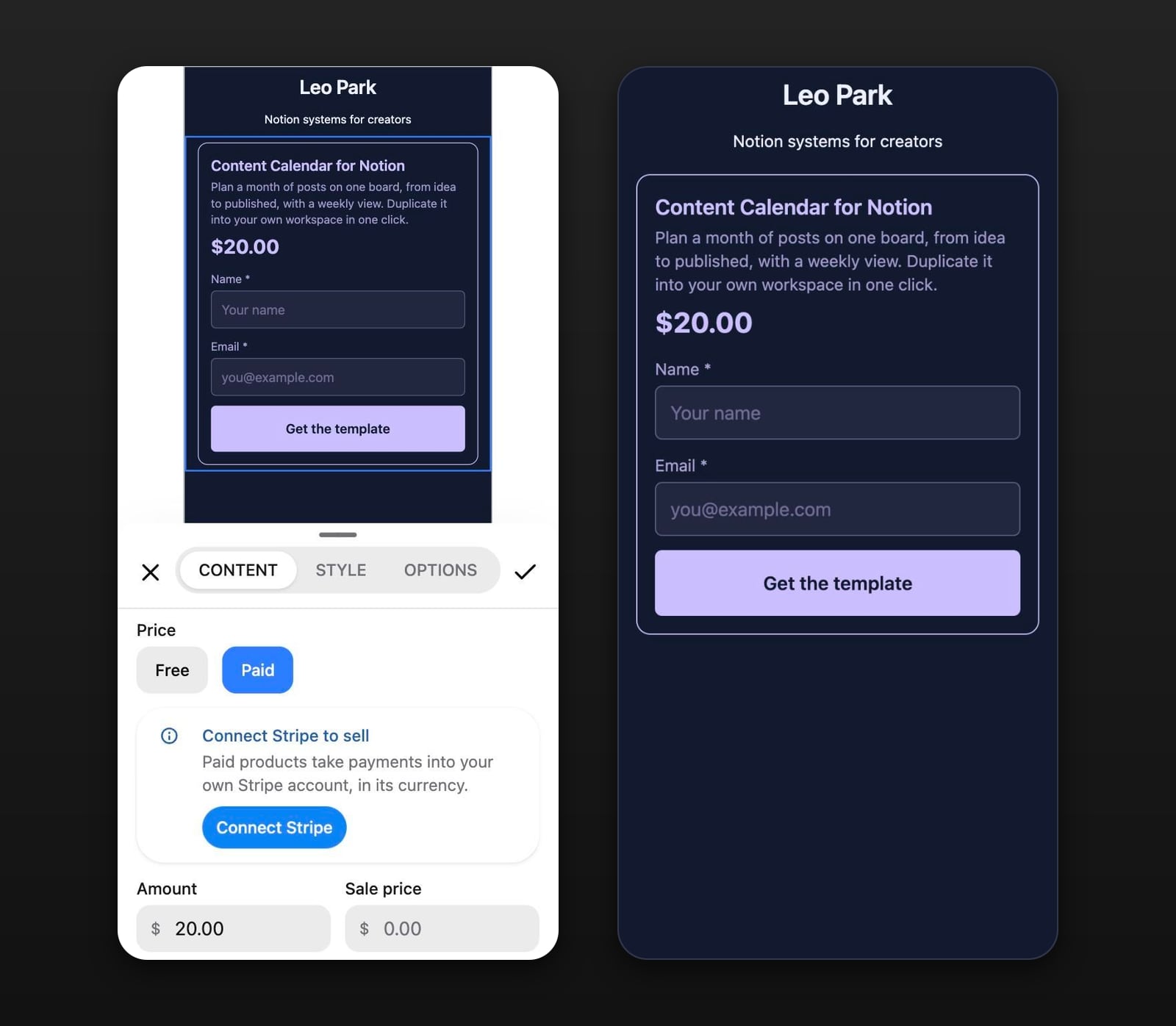
The template link never appears on the published page. A buyer types their name and email into the block, pays on Stripe's checkout page and lands on a receipt with an Open link button, and Stick emails them a link back to that receipt. You can rewrite that email in the block's Options tab.
The money goes to your own Stripe account, and Stick takes no percentage of it. Checkout charges the price you set without adding tax on top, and refunds and disputes are yours to handle in Stripe. Which Stick plan includes paid products is on the pricing page.
Everyone who fills in the block lands in your Audience, including people who start checkout and don't finish, and you can export it as a CSV. Keep that list for the day the link changes, whether it's a fresh copy for a new version or a new link after the old one spread: past orders keep the link they paid for, so earlier buyers need the new one from you.
Canva templates sell the same way, with stricter rules about what can go into them: see how to sell Canva templates. For printables and guides you deliver as a file, read how to sell a PDF online.